Quick-Start Guide for New Users
User Guide
Do you have a question or problem that isn't listed here? Reach out to us via email at support@zamination.com and help us improve this guide.
- Logging in to your account.
- Required content vs. content libraries.
- How to complete all the course material.
- Updating your profile and notification settings.
Logging in to your account.
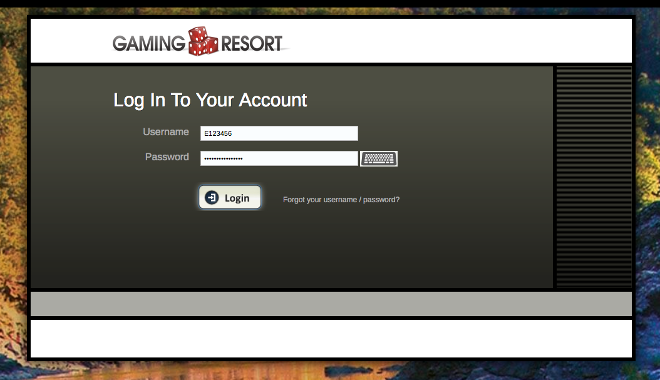
You should log into your account through your company's Zamination log in portal. Contact your supervisor or program administrator for a link to your login portal if you don't know it.
Log in using your username (usually your Employee ID number) and the password provided by your supervisor or program adminstrator. The first time you log in, you will probably be prompted to set a new password and to add or confirm your contact information.
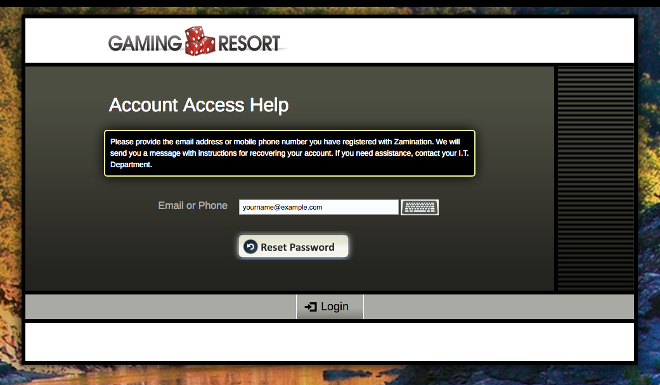
If you've logged in before and provided or confirmed your contact information, you can get help logging in to your account in case you've forgotten your credentials. Click the "Forgot you password?" link and enter either the email address or mobile phone number you've previously registered. We'll send you information to help you get back into your account.
Required content vs. content libraries.
Your Zamination homepage/dashboard probably looks something like this:
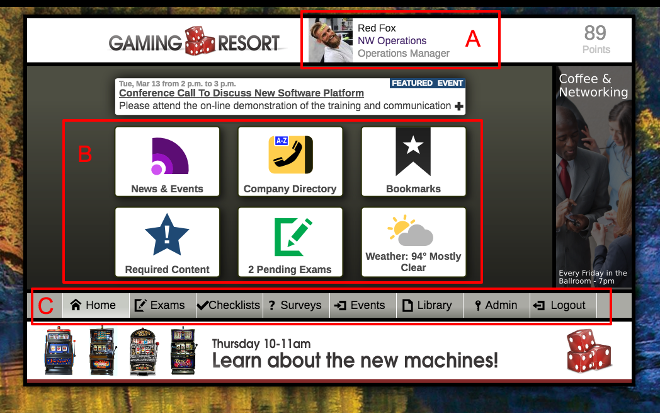
Your name and photo link to your profile pages (A). There's a set of buttons that can change depending on what content or actions are available to you (B). And there's a menu bar that links to all of your different content libraries (C).
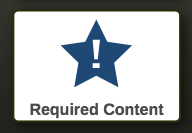 One of the buttons on the dashboard might be "Required Content".
This button leads to a list of content you need to complete.
Maybe a compliance exam, maybe a document detailing a new company
policy, etc.. Make sure to check your homepage/dashboard
regularly for new required content. If you've completed all the
required content, the button will NOT appear.
One of the buttons on the dashboard might be "Required Content".
This button leads to a list of content you need to complete.
Maybe a compliance exam, maybe a document detailing a new company
policy, etc.. Make sure to check your homepage/dashboard
regularly for new required content. If you've completed all the
required content, the button will NOT appear.

The bottom menu bar has buttons that link to your content libraries. You can browse these libraries to review your old exams, documents, videos, and other content. You might also find optional content in these libraries that you can complete to earn points/credits to exchange for rewards or improve your Zamination score.
How to complete all the course material.
Many exams or courses will contain additional material that must be completed before you will be able to access the rest of the course/exam. If there's just a single item, then you may be redirectly instantly to that item when starting the course/exam. But if there are multiple items you will see a list of items like the one below.
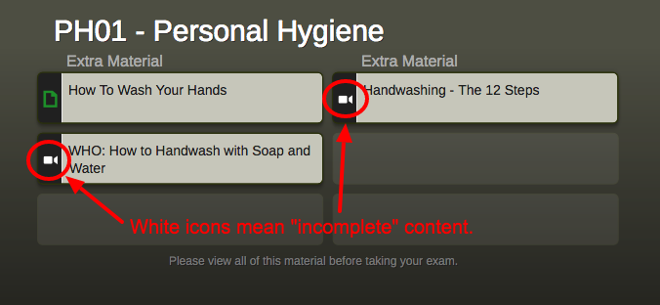
Note the white and green icons before each item's title. These icons tell you what kind of content the item is, for example a video or document, and whether you've completed the item on not. A "white" icon indicates that the item is NOT complete, while "green" icons show that the item has been completed.
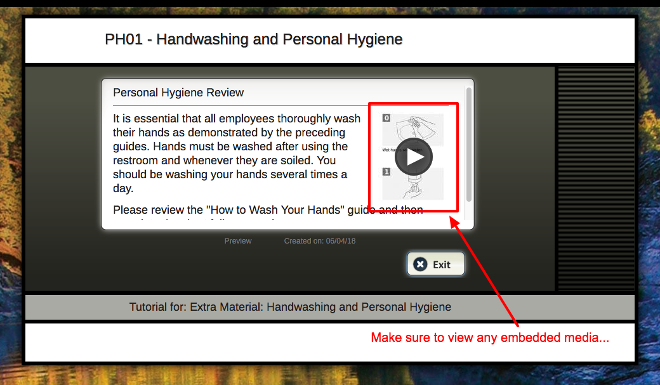
Some content items can have multiple parts. A document can have many pages. A tutorial card can have embedded documents or videos. Make sure to view all the items! If you've viewed a content item, but it still has a "white", incomplete icon, you should review the item and make sure you've watched the entire video, viewed all the document pages, or opened all the embeded media.
Once you've completed all the required additional material, you'll see a "Take Exam" button below the list. Click that button and complete the exam to get credit for the course.
Updating your profile and notification settings.
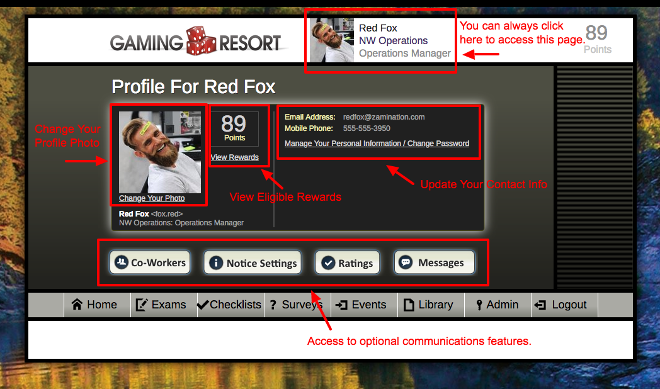
You can access your profile page by clicking your photo or name at the top of the screen. From your profile page, you can update your photo, manage your contact info and notification preferences, and possbily communicate or rate your co-workers.
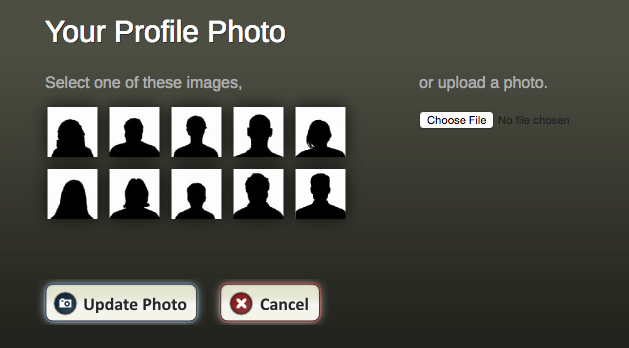
From your profile page, click on your current photo to upload a new picture or select from one of the placeholders. If you upload your own picture, you'll be prompted to crop your image into a square format for your profile.
Back on your profile page, you can click on your current point/credit total to check if you are elgible for any rewards. You can also click on your personal data to update your contact info and any other profile fields available at your company.
You might also find buttons to search and contact your co-workers or to view the list of ratings and recognition forms available on your system. Not all systems will have these features.